
Firestick IPTV Guide.
A good Firestick IPTV setup should be simple: install the player, connect your playlist or Xtream Codes account, add guide data, and start watching with a layout that makes sense from the sofa. Telemac IPTV Player is built for exactly that kind of experience, combining live TV, movies, series, favourites, guide browsing, and search in a Fire TV-friendly interface.
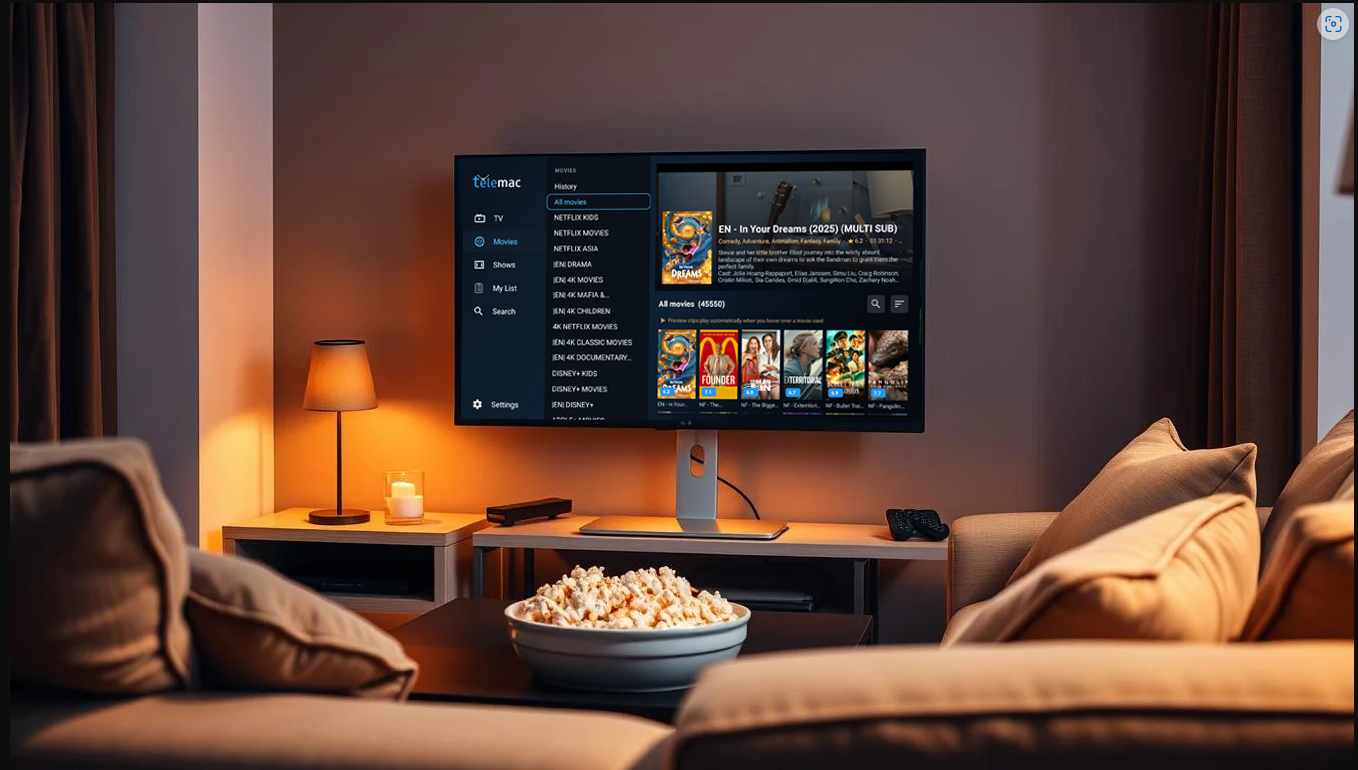
Firestick IPTV Guide
A good Firestick IPTV setup should be simple: install the player, connect your playlist or Xtream Codes account, add guide data, and start watching with a layout that makes sense from the sofa. Telemac IPTV Player is built for exactly that kind of experience, combining live TV, movies, series, favourites, guide browsing, and search in a Fire TV-friendly interface.
Step 1: Choose the Right Firestick IPTV Player
The first choice matters because the player controls everything that happens after login. A good Firestick app should load your provider data cleanly, work smoothly with a remote, and keep live TV and on-demand content easy to find.
- 1Look for support for M3U playlists and Xtream Codes credentials.
- 2Choose a player with XMLTV EPG support for a proper programme guide.
- 3Prioritise a TV-first interface over touch-style menus.
- 4Make sure the app handles live TV, movies, and series in one place.
Step 2: Add Your IPTV Provider Details
Most providers give you one of two setup paths. The easier one for many users is Xtream Codes, because it breaks the login into normal fields. M3U is also common, especially when a provider sends a full playlist URL by email.
- 1Use Xtream Codes if you have a server URL, username, and password.
- 2Use an M3U URL if your provider sends a playlist link instead.
- 3Add an XMLTV EPG source if you want guide and now-playing data.
- 4Check that categories and channels load before customising favourites.
Step 3: Make Firestick IPTV Easier to Use Every Day
Getting an IPTV app installed is only the start. The real test is how easy it is to use every evening. That is why a good Firestick IPTV guide should also cover daily habits, not just setup. Telemac IPTV Player is designed to reduce menu friction after installation, which is where many generic IPTV apps fall short.
- 1Save your regular channels as favourites so you do not scroll through full lists every time.
- 2Use search to reach films, series, or channels faster when category lists get large.
- 3Enable guide data to make live TV browsing feel closer to a normal set-top box experience.
- 4Take advantage of recent viewing, reminders, and saved content if your player supports them.
A Firestick remote has limited buttons. The better the app structure, the fewer clicks it takes to start watching. That is where TV-first design pays off.
FAQ: Firestick IPTV Guide
What is the best way to use IPTV on Firestick?
The easiest way is to use a player built for Fire TV, then sign in with either M3U or Xtream Codes details from your provider. Telemac IPTV Player is designed specifically for that workflow.
Do I need EPG for Firestick IPTV?
No, but it improves the experience. XMLTV EPG data lets you see what is on now and next, making live channel browsing much easier.
What should I do after importing my playlist?
Check that categories, channels, and guide data load correctly, then save favourites and test playback on your regular channels.
Why use Telemac IPTV Player on Firestick?
It combines Fire TV-focused navigation, playlist and Xtream Codes support, guide browsing, VOD organisation, and everyday usability features in one app.
Build a better Firestick IPTV setup
Telemac IPTV Player helps turn Firestick into a cleaner, easier IPTV experience with support for live TV, movies, series, M3U playlists, Xtream Codes, guide data, and favourites.
Telemac Player
Experience Live TV, Movies and Series
Built for the sofa
Fire TV focused navigation with clear sections for TV, Movies, Shows, Search, My List, and Settings.
Works with your service
Connect through Xtream Codes or M3U playlists and load programme guide data with XMLTV EPG support.
Made for everyday viewing
Use favourites, reminders, recent viewing, previews, resume playback, and category browsing to get to content faster.